ConnectWise Manage integration overview
ConnectWise Manage provides a great deal of flexibility in its configuration and use. Datto Commerce provides tailored configuration options to enhance your existing processes.
This article provides an overview of the ConnectWise Manage integration and the most common sync configurations. For setup instructions, proceed to Setting up the ConnectWise Manage integration.
NOTE This configuration is recommended for most MSPs.
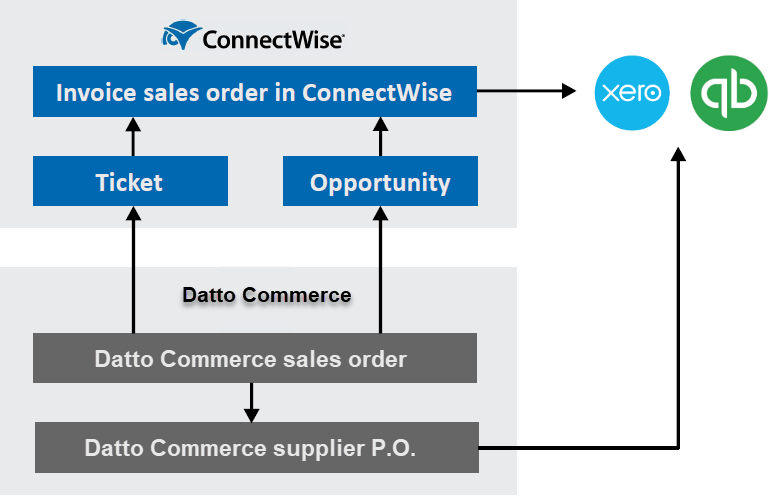
The ticket and opportunity are created in ConnectWise Manage and supplier purchase orders sync to QuickBooks Online or Xero.
Datto Commerce issues sales orders that sync to ConnectWise for invoicing (with product SKU creation in ConnectWise). Invoice in ConnectWise either from an opportunity or ticket.
ConnectWise syncs invoices with QuickBooks Online or Xero.
Datto Commerce syncs supplier purchase orders with QuickBooks Online or Xero.
Advantages
| Disadvantages
|
NOTE Invoice sync to Xero via Wise-Sync or ConnectBooster and MYOB via Innovent.
Supplier purchase orders in Datto Commerce sync to ConnectWise Manage.
Datto Commerce supports invoicing from ConnectWise Manage either from tickets or opportunities.
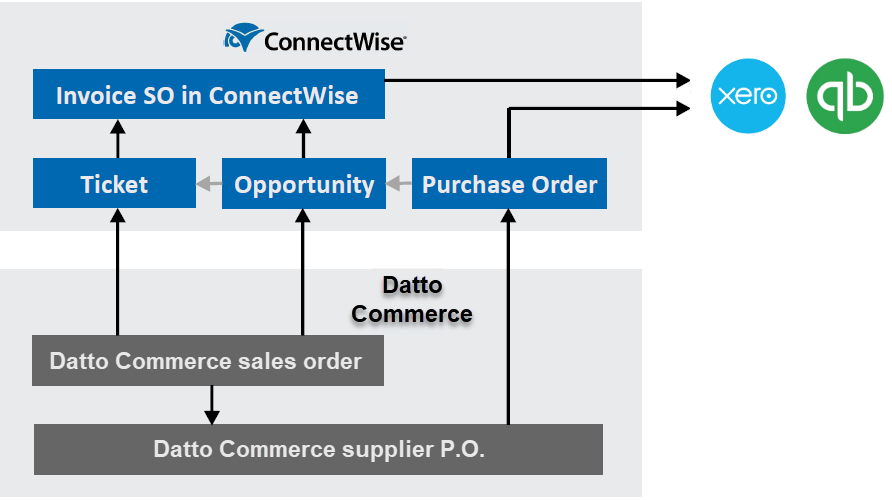
For partners that utilize ConnectWise Manage Procurement, Datto Commerce links the purchase order with the sales order in ConnectWise. The ability to see which items have been shipped in the ConnectWise sales order simplifies the invoicing of shipped products:
Datto Commerce changes the status of the opportunity to won, updating the options selected.
Create a customer sales order in ConnectWise from the opportunity. This must be done prior to receipting the supplier purchase order in Datto Commerce so that the synced supplier purchase order is linked to the customer sales order. Receipting the purchase order before creating the sales order is not supported by ConnectWise.
Purchase orders automatically issued by Datto Commerce sync to ConnectWise as a completed purchase order and automatically link to the Purchasing Demand created by the customer sales order.
The linked purchase order(s) allow(s) only the shipped goods to be invoiced or all goods to be invoiced in ConnectWise.
Note that the sales order in ConnectWise should not be invoiced before the purchase order(s) are receipted. Otherwise, the purchase orders will not link to the sales order, because they have already been invoiced.
ConnectWise syncs invoices and supplier purchase orders with your accounting system.
Datto Commerce issues sales orders that create tickets (with products) in ConnectWise for invoicing.
Purchase orders automatically issued by Datto Commerce sync to ConnectWise as a completed purchase order and automatically link to the Purchasing Demand created by the ticket.
ConnectWise syncs invoices and purchase orders with your accounting system.
NOTE This configuration is recommended for high-volume sales.
The ticket (for services advice) and opportunity are created in ConnectWise Manage. The invoice and purchase order sync to QuickBooks Online or Xero.
Datto Commerce issues sales invoices (potentially with services revenue, if known) that sync directly to QuickBooks Online or Xero.
To merge ConnectWise and Datto Commerce invoices in QuickBooks Online or Xero, sync to QuickBooks/Xero as Draft invoices, so Datto Commerce invoices can be merged with a ConnectWise services invoice. QuickBooks/Xero invoice sequencing can be selected, if preferred.
Sales orders raise a ticket in ConnectWise (no product creation).
Automated procurement by Datto Commerce and upon purchase order receipt: purchase orders sync directly with QuickBooks Online or Xero for a correct accounts payable ledger.
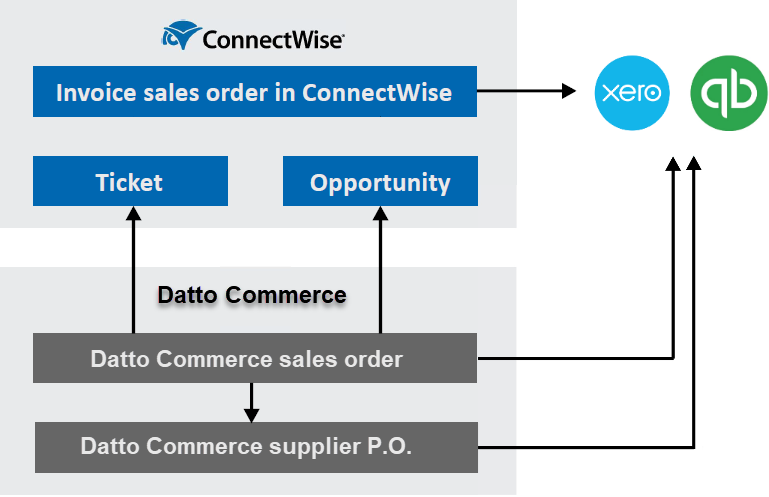
In this configuration, Datto Commerce essentially functions as a product search, product quoting, and customer online portal front-end to ConnectWise Manage.
Datto Commerce issues sales orders, which sync to ConnectWise for invoicing (with product SKU creation in ConnectWise). Invoice either from an opportunity or ticket.
ConnectWise syncs invoices and supplier purchase orders with your accounting system.
In this configuration, you may choose to utilize Datto Commerce's automated purchase orders as a procurement suggestion. Configure the purchase order to be issued to the purchasing officer and not the supplier. This saves time working out where to retrieve supplies from when raising the purchase order in ConnectWise.
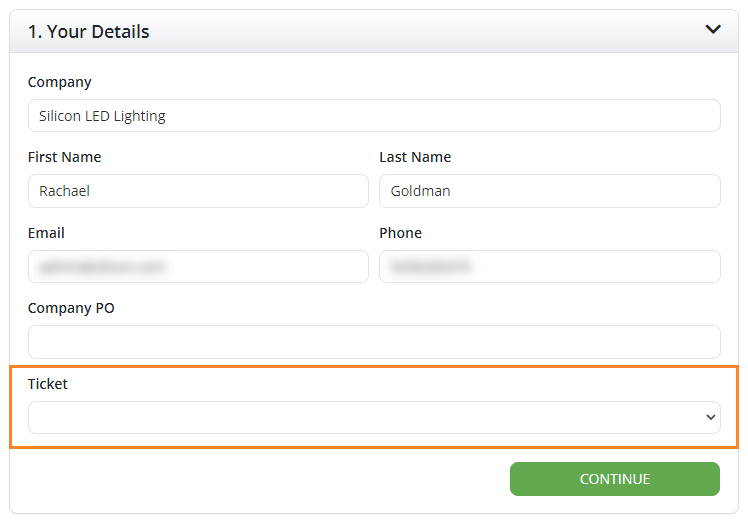
For internally placed orders, an option to assign the transaction to an open ticket or create a new ticket is available at checkout.
For online customer orders (or customer quote acceptance), assign a Datto Commerce sales order to an open ticket, or create a new ticket. If you do not select a ticket, Datto Commerce will create a ticket in ConnectWise.
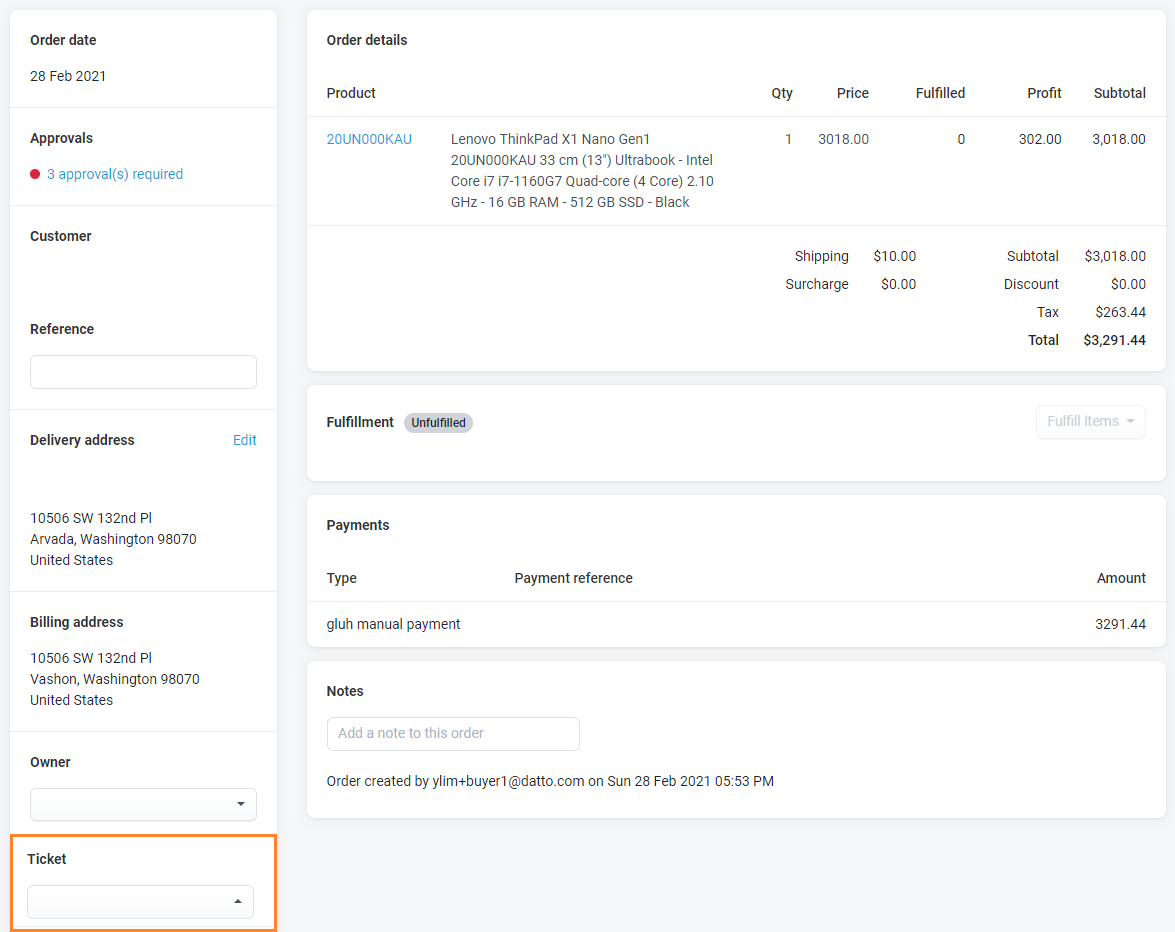
Additional products and services can be added against the same ticket later by creating a new Datto Commerce sales order (assuming the ticket is still open).
When creating a Datto Commerce sales order in the Online Store, a ticket can be assigned or created in the same manner during checkout.
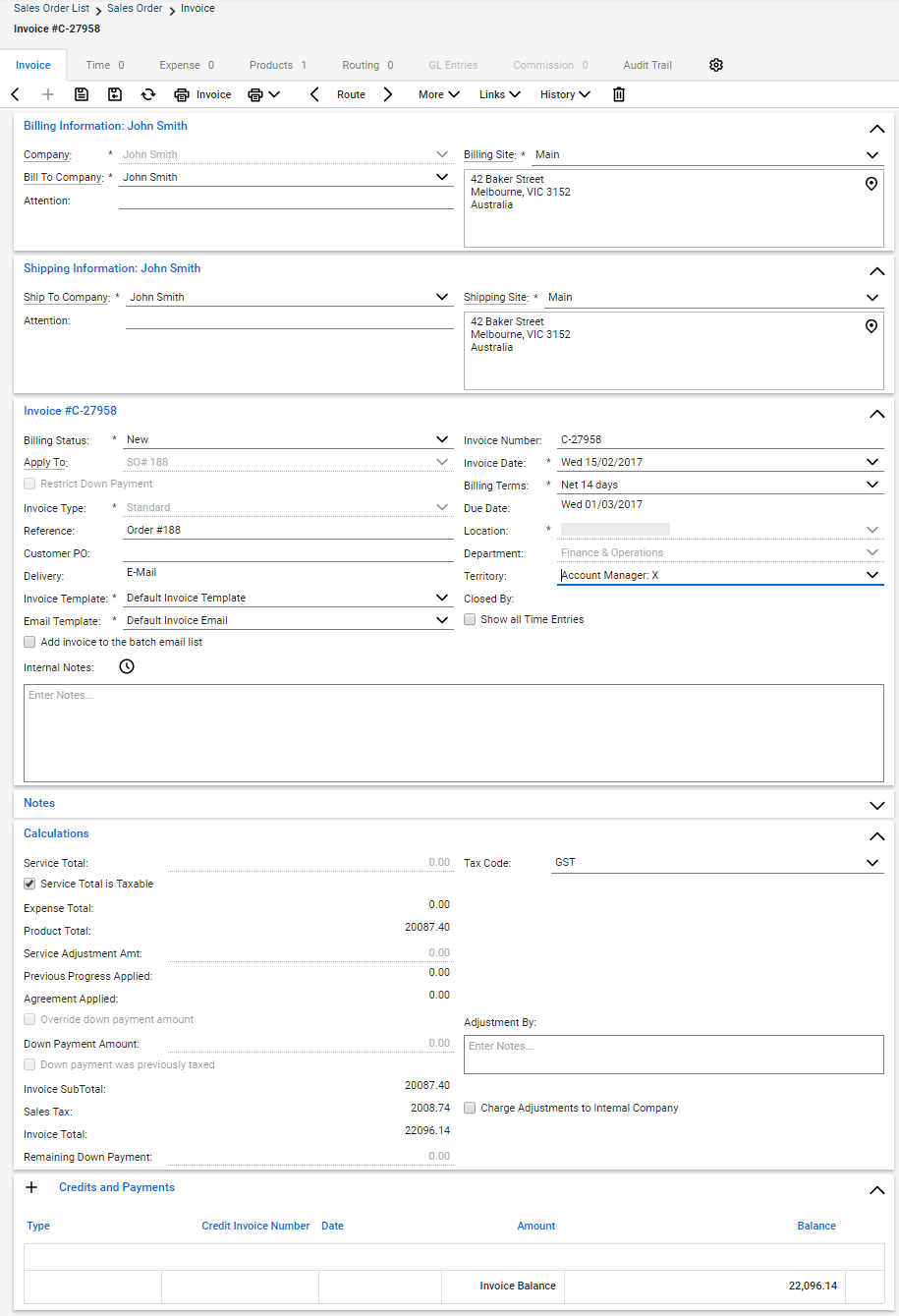
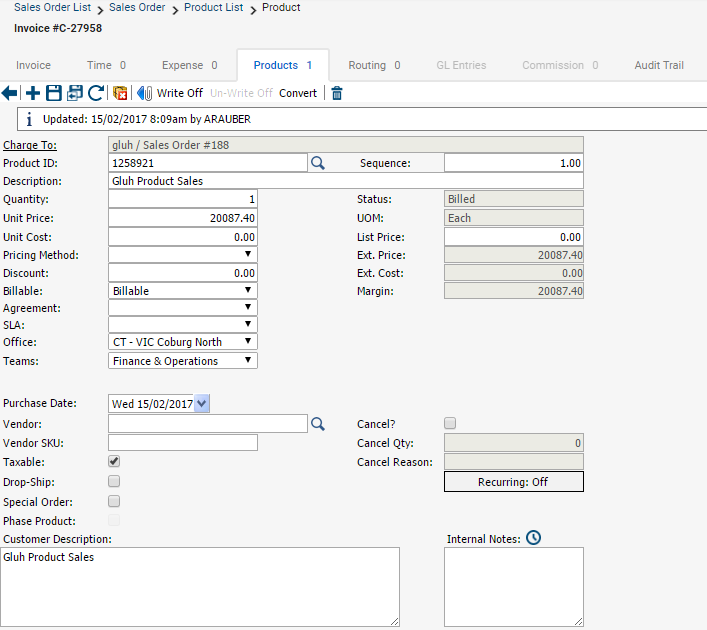
Once a sales order has been placed in Datto Commerce, the sales order (created from a ticket or opportunity) appears in ConnectWise as follows:
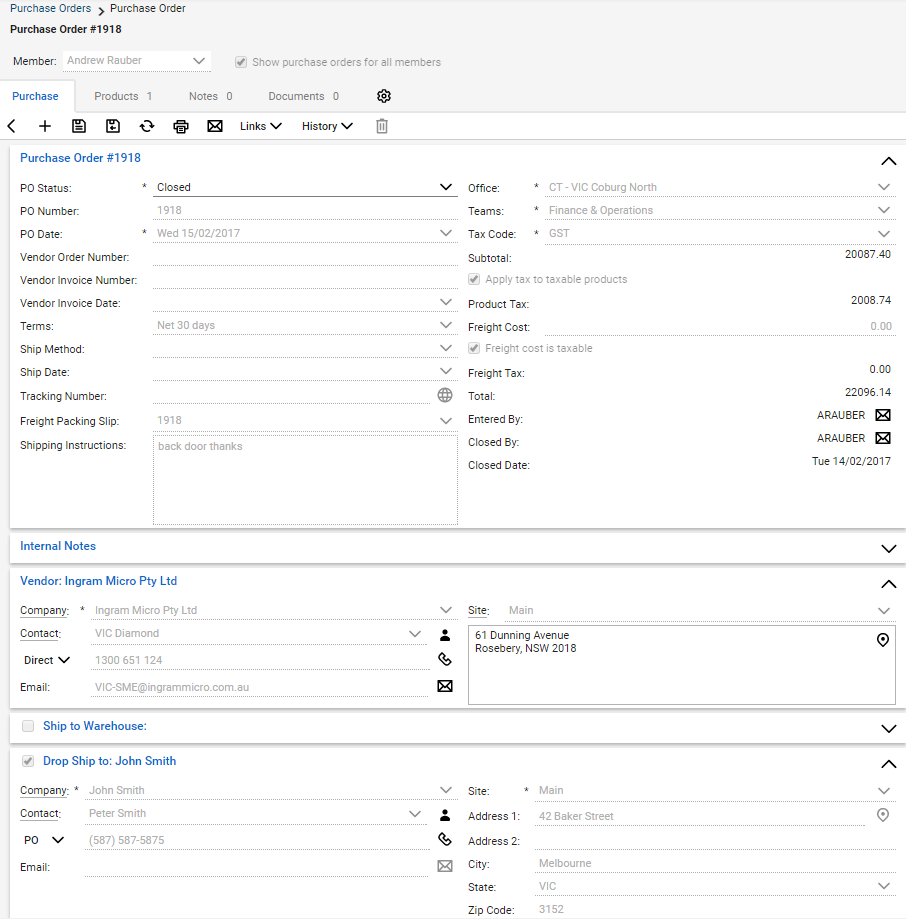
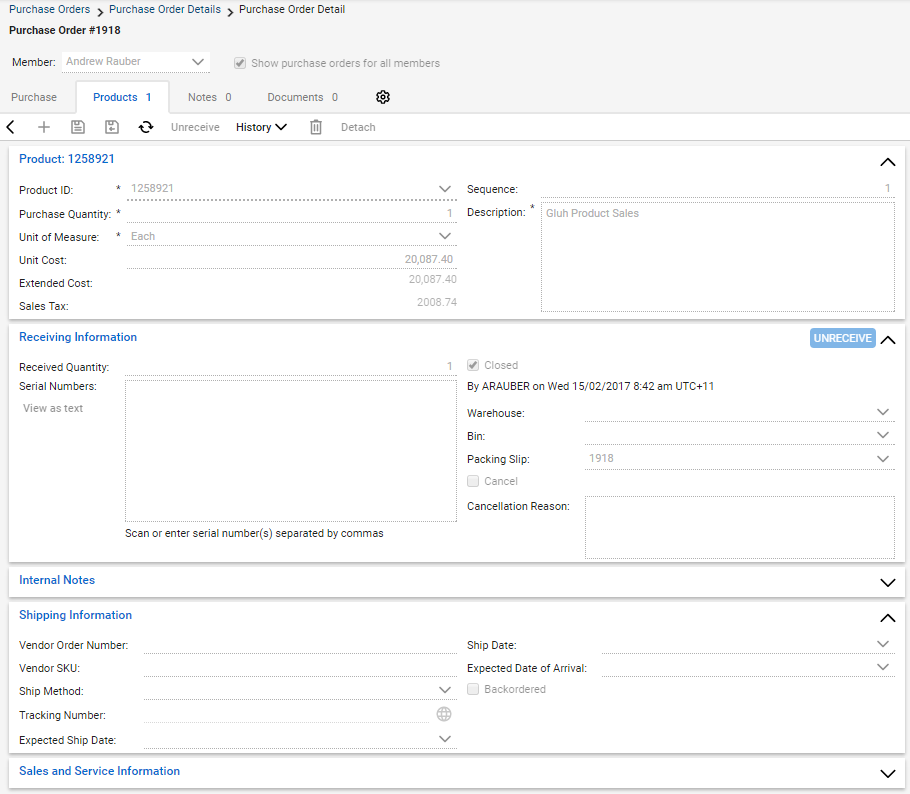
The supplier purchase order appears in ConnectWise as follows (if configured):
 | Need troubleshooting help? Open the Datto Help Center |
 | Have an idea for a new feature? Want to learn about upcoming enhancements? Visit the ideas forum! |
 | Provide feedback for the Documentation team |
Was this article helpful?
Yes NoWhy wasn't this article helpful? (check all that apply)
Thanks for your feedback.Want to tell us more?
Great!
Thanks for your feedback. Want to tell us more?